¶ Transferring with FOP2
For a video reference, click this timestamped link to our FOP2 tutoral video.
All transfers begin once you are on a call. Whoever you are speaking to is the external party and the extension receiving your call is the transferee. To choose the transferee, simply select their 'button' within the FOP2 interface.
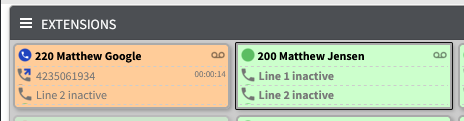
The above screenshot shows extension 200 selected. This marks them as the transferee and means that the following action will be directed at their extension.

The action bar at the top, and shown in the screenshot above, has 3 transfer options (4 if you have transfer to mobile enabled). From left to right the actions are Blind Transfer, Attended Transfer, and Transfer to Mailbox.
¶ Blind Transfer
Sends a call to the selected extension immedietely. The transferee extension starts ringing and when they answer they will be speaking with the external party. If they do not answer the external party will reach their voicemail.
¶ Supervised (attended) Transfer
Puts the external party on hold and dials the transferee. You will be able to speak to the transferee and tell them who you will be transfering. When you hang up, the external party will be connected with the transferee automatically. If you decide to cancel the transfer you can instead pick up the call on hold.
¶ Transfer to Mailbox
This will immedietely send the external caller to the voicemail box of the selected extension.
¶ Park
You can also transfer a call by using the park feature. Park can be thought of as a shared hold. Any external callers in park can be picked up by any extension within the office.
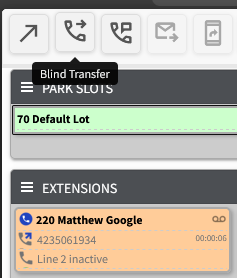
To place a call on park, select the '70 Default Lot' button and then click 'Blind Transfer'. This will place the external party on park.
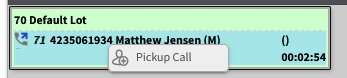
To pick up a parked caller, left click on their line beneath 'Default Lot' and then click 'Pickup Call'. Your phone will ring and when you answer you will be speaking with the external party.