¶ How to Set Up FOP2 Chrome Extension
¶ Automatic Installation
First, we need to install the Chrome Extension. You can do that from this link:
https://chromewebstore.google.com/detail/fop2-extension/noeilkljmfafbfcdoieialchglebbcea?pli=1
If you don't have a Google account logged into Chrome, you won't be able to install extensions from the store and will need to do it manually. Please scroll to the bottom of this wiki article for those instructions.
¶ Enable Click-To-Dial and Setup Credentials
We now need to configure the extension to connect to your phone system.
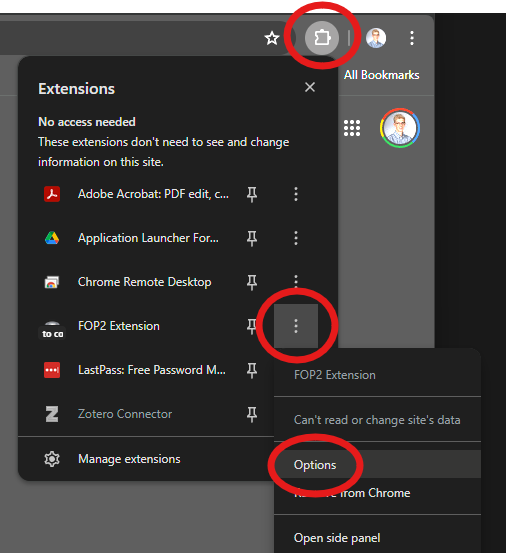
First, open up the extension options by clicking the puzzle piece beside the URL bar and then the 3 dots beside the FOP2 extension item.
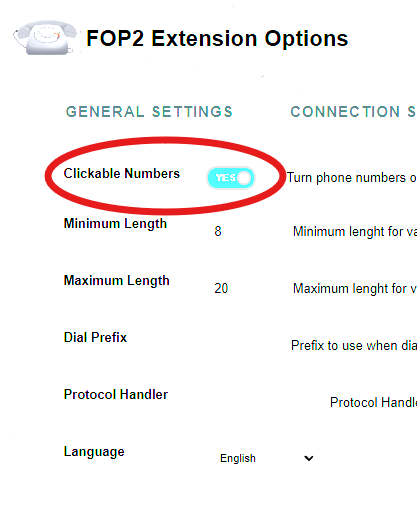
Then turn on 'Clickable Numbers' in order to enable Click-To-Dial.
In addition, turn on 'Search Links' even though it doesn't show in the screenshot below.
Finally, enter your connection information.
Your FOP2 Server and password will be provided to you. Your extension will be the same as your phone extension. FOP2 Port will stay the same, 4445.
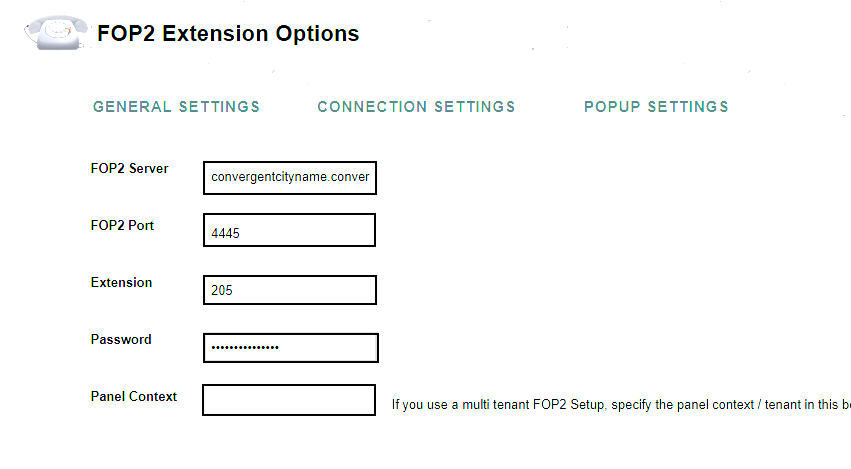
Click Save. If configured properly, the FOP2 icon within the puzzle piece menu should no longer have a scrolling banner and selecting it will open a sidebar showing the extensions in the office.
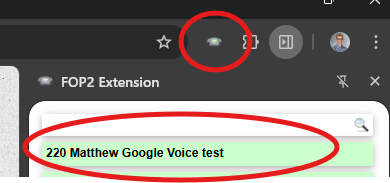
You can now click phone numbers on website to call them. If you hover over a phone number that is also a link and you see the rotary phone icon, then you can click it to dial.
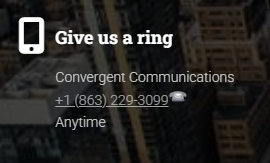
If the phone number does not turn into a link, or if the link does something else (like messaging a caregiver in WellSky) then you can highlight the whole number (don't worry if you select a few other characters), right click, then choose 'Dial'.
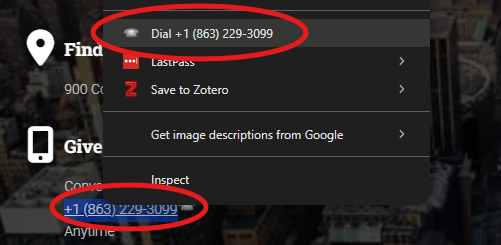
If you would like to see this in action, take a look at the relevant part of this video.
¶ Download the Extension
If you don't have a google account in your browser and are unable to log in to one, then you aren't allowed to install extensions. The way around this is to manually download and install the extension. Please only do this if you are unable to download the extension from the first set of intructions.
First, download the extension from our website using this link. The download should start automatically.
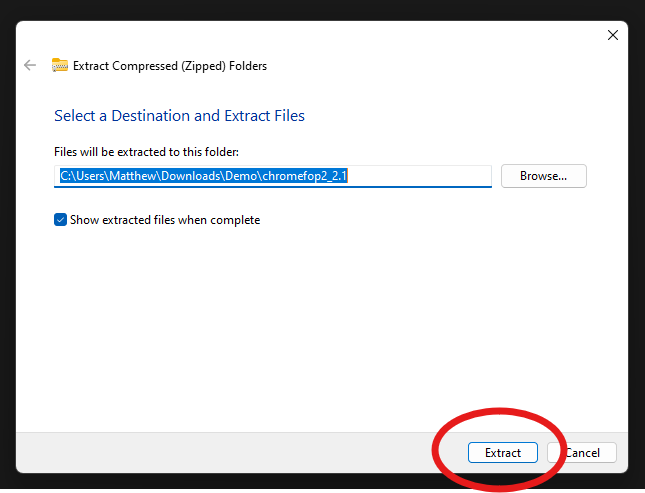
Next you'll want to extract the extension. You can do this in File Explorer by selecting the zip folder and then clicking 'Extract all' either in the menu at the top or in the right click menu.
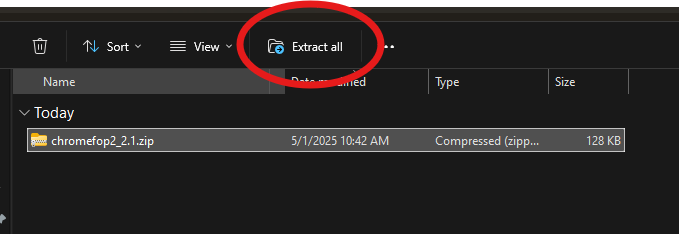
Click extract in the next menu.
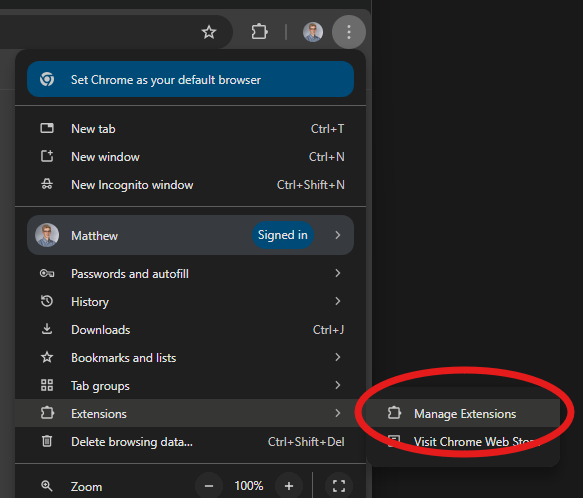
Now, open Chrome, find the 3 dots just beneath the exit button in the top right. Halfway down the options, click on 'Extensions' then 'Manage Extensions'.
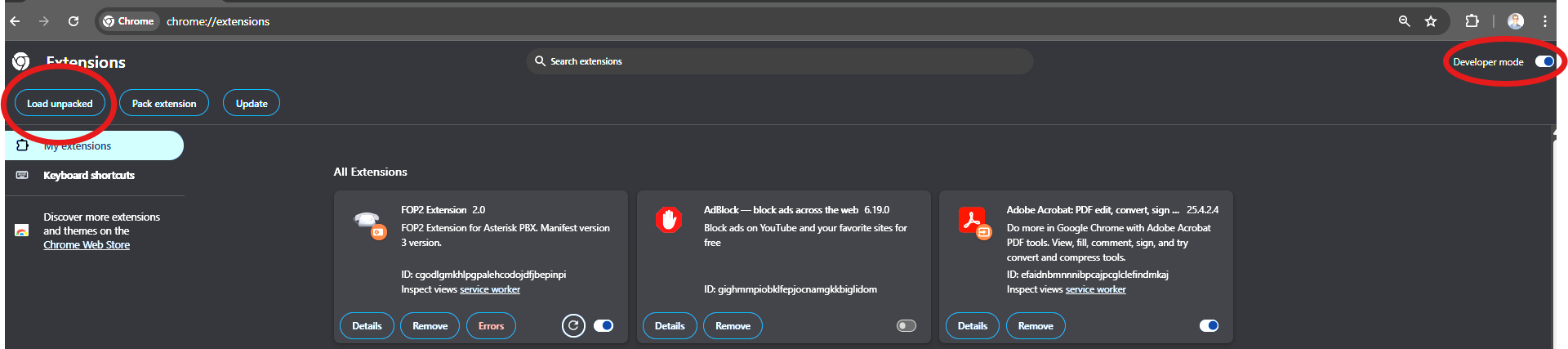
Now, enable 'Developer Mode' in the top right and then 'Load Unpacked' in the top left.
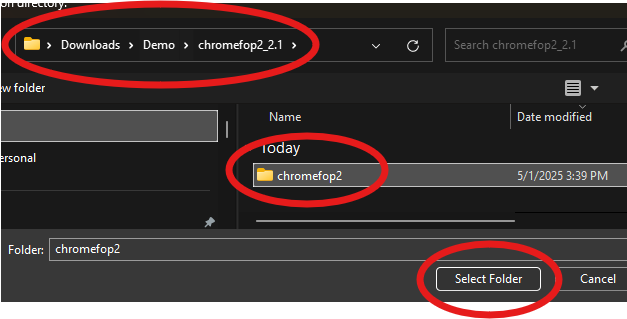
Navigate to the folder where you downloaded and extracted the extension. Double click the chromefop2_2.1 folder, then select the next folder 'chromefop2' and choose 'Select Folder' in the bottom right.
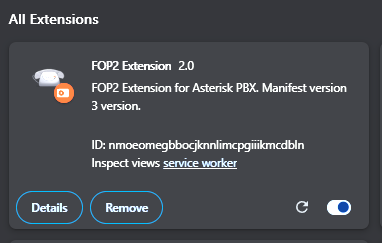
You should now see the following extension listed. Don't worry if it says 'Errors'.